HOME ABOUT US PRODUCTS RESELLERS SUPPORT PURCHASE Scottsdale, Arizona (USA)

IGetMail - Accounts Panel

IGetMail delivers email from your remote POP3 email accounts to your local SMTP/Exchange Server according to the schedules that you define. To deliver your email, IGetMail needs access to the POP servers that hold your mail and to your internal SMTP/Exchange Server.

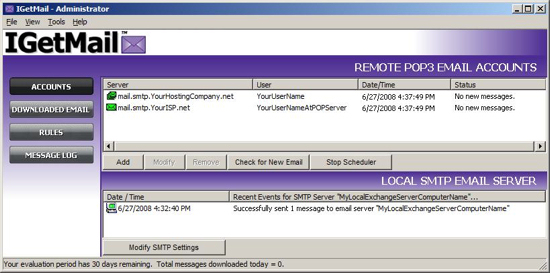
The Accounts Panel allows you to Add, Modify or Remove POP3 accounts, to force a check for new emails and to Stop/Resume the Scheduler.  You can also use the Accounts Panel to check on the status of your local SMTP/Exchange Server .

The Accounts Panel is divided into 2 sections. The top section shows you the list of POP3 accounts that IGetMail will pull mail from. The bottom section shows you the SMTP server that IGetMail will send your mail to. You can look at the Accounts Panel to watch IGetMail as it pulls your email from the remote POP3 accounts and sends these downloaded messages to your SMTP server.

IGetMail's Accounts Panel - Watch your POP email get downloaded to your Exchange Server in real time.

Top Section:  List of POP3 Accounts

  • Add, Modify & Remove buttons allow you to configure, administer and maintain the list of remote POP3 email accounts that IGetMail will be servicing.
  • The Check for New Email button allows administrators to login to all of the remote POP3 accounts listed and perform a manual check for email.
  • The Stop/Resume Scheduler button allows administrators to suspend or resume the automatic scheduler.  This is helpful when you are performing maintenance on your email server or network and do not want IGetMail to download email while the computer is not available to receive the email properly.

Bottom Section: Server Information

  • Local SMTP Email Server - From the Accounts panel, you can configure, administer and maintain the information that IGetMail needs about your internal/local SMTP/Exchange Server.  When you press the Local SMTP Email Server button, you will be able to input the information that IGetMail needs in order to access your local server.  Keep in mind that all IGetMail does is send the email to your local Exchange Server - which in turn sends each individual message to the intended recipient.
  • Modify SMTP Settings - Use the Modify SMTP Settings button when you need to inform IGetMail of any changes that have been made to access your internal/local SMTP/Exchange Server. For example, when you change the password that allows you to access your local email server, you will need to inform IGetMail of this new password. To do so, press the Modify SMTP Settings button, use the Configure Local Email Server dialog to inform IGetMail of any new settings.

Do you have more questions ?  Please check out the FAQs.


IGetMail Version 3.0
Downloads POP3 Email
30 Times Faster
than the
SBS 2003 Connector

IGETMAIL VERSION 3.0

What's New in 3.0

Features & Benefits

Screen Shots

Easy Installation Steps

FAQs
Data Sheet (PDF)
Customer Testimonials
Download 30-day Trial
How to Upgrade

HOW TO USE WITH

AntiVirus & AntiSpam
Exchange Server 2007
Exchange Server 2003
Exchange Server 2000
Exchange Server 5.5

SYSTEM REQUIREMENTS

Runs on any Windows Server that can run Exchange Server

PRICING

$129 USD for license to download email from multiple POP3 servers to your local Exchange Server or SMTP Server


NEED BACKUP SOFTWARE?

How to Backup Exchange

Backup for Workgroups Info


Lockstep Systems, Inc.  *  P.O. Box 4662,  Scottsdale, AZ  85261  *  1-480-596-9432

Support  |  Contact  |   Privacy   |  Legal

Copyright © 2008 Lockstep Systems, Inc.  All Rights Reserved.