|
IGetMail Automatically Downloads email and forwards your email to your Exchange Server or remote SMTP Server |
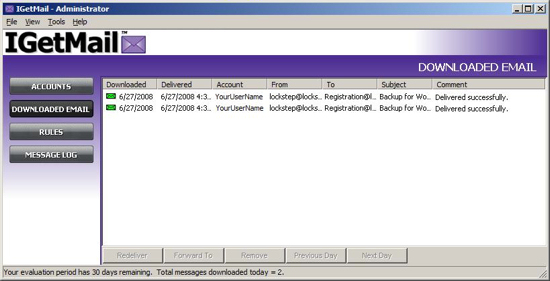
IGetMail - Downloaded Email PanelWhat does the Downloaded Email Panel show?The Downloaded Email Panel allows administrators to view the status of downloaded email and provides options to Redeliver, Modify or Remove email messages. View downloaded email for the current day or a few days in the past. Each line item in the Downloaded Email panel represents one email message that IGetMail has downloaded from a remote POP3 to your local Exchange Server. What actions can I perform on Downloaded Email?From the Downloaded Email panel, you can redeliver mail, forward mail, delete mail and look at IGetMail's downloading activities by day. To activate the features available on the Downloaded Email panel, you must first highlight the message or group of messages that you would like to take an action on. Please note that IGetMail supports the following selection methods: To select one message, click on the individual message. To select a range of messages, click on the first message and shift-click on the last message. To select multiple messages that are not together, use ctrl-click on each message to include in the operation.
|
Everyday, thousands of corporations, non-profits, and Government agencies use IGetMail software to download their email from remote Servers! You can too! |
|

|
|